Slack app
Hodor is an MCP gateway. Connect your own Slack account and your agent (Claude, Cursor, ChatGPT…) can use Slack's official MCP server through Hodor, with a policy check on every tool call and instant revoke.
Included with your Hodor subscription · See pricing
01 · What it does
Hodor sits between your agent and Slack's official MCP server (mcp.slack.com). It passes Slack's tools through and never calls an LLM or writes anything itself.
Each Slack tool call from your agent is checked against your workspace's policies before it reaches Slack.
Disconnect Slack in Hodor and access stops on the next call. No token to hunt down.
Your real Slack token stays on Hodor's servers, encrypted. The agent only holds a scoped Hodor credential.
02 · How it works in Slack
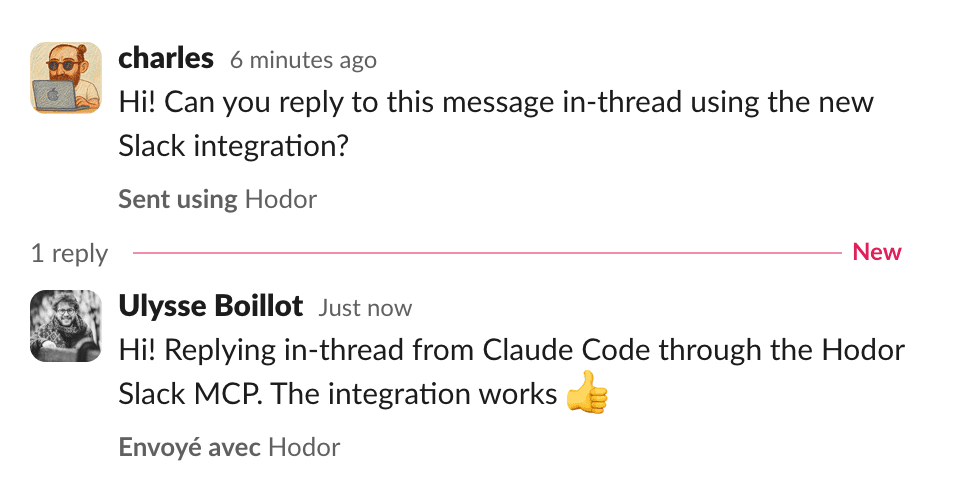
Install guide
The install starts in Hodor, so the button below takes you to a Hodor sign-in first. Then follow the four steps.

Sign in at app.hodor.ai, open Connectors and browse the catalog. If your team has no Hodor workspace yet, a workspace admin creates one first (or book a demo).
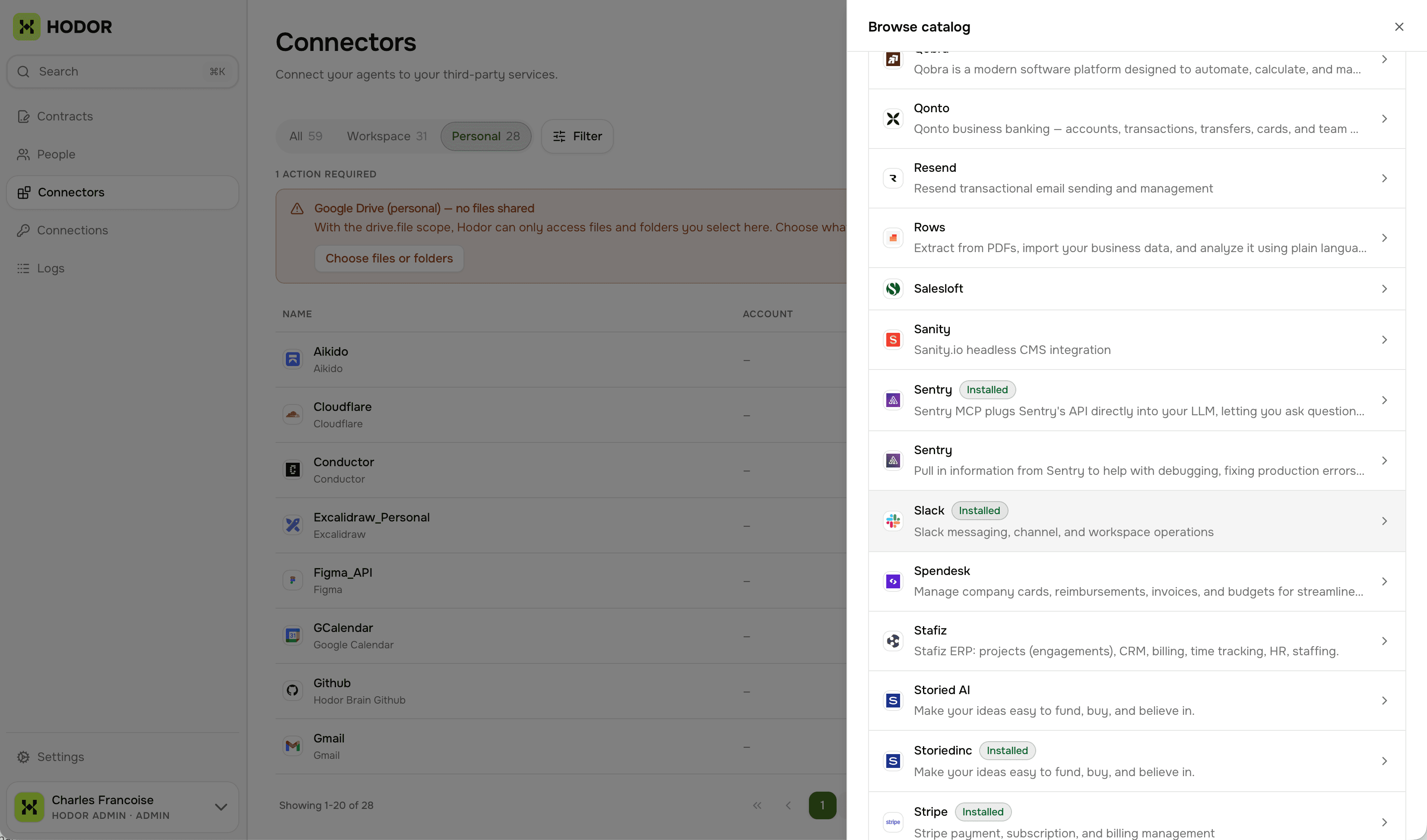
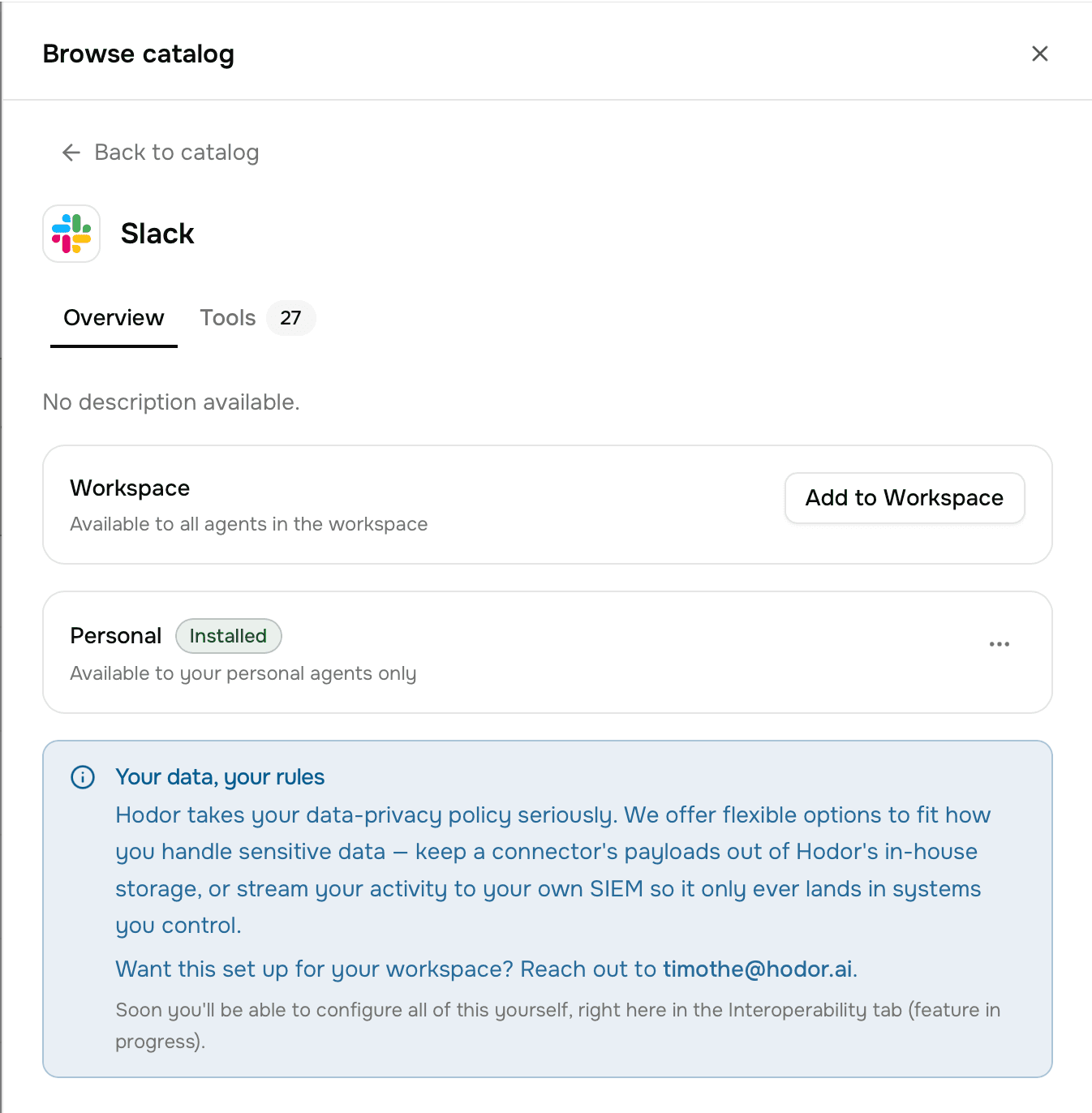
Find Slack in the catalog and add it in personal mode. It is then available to each person's own agents only, and each person connects their own Slack account. Hodor never shares one Slack connection across users.
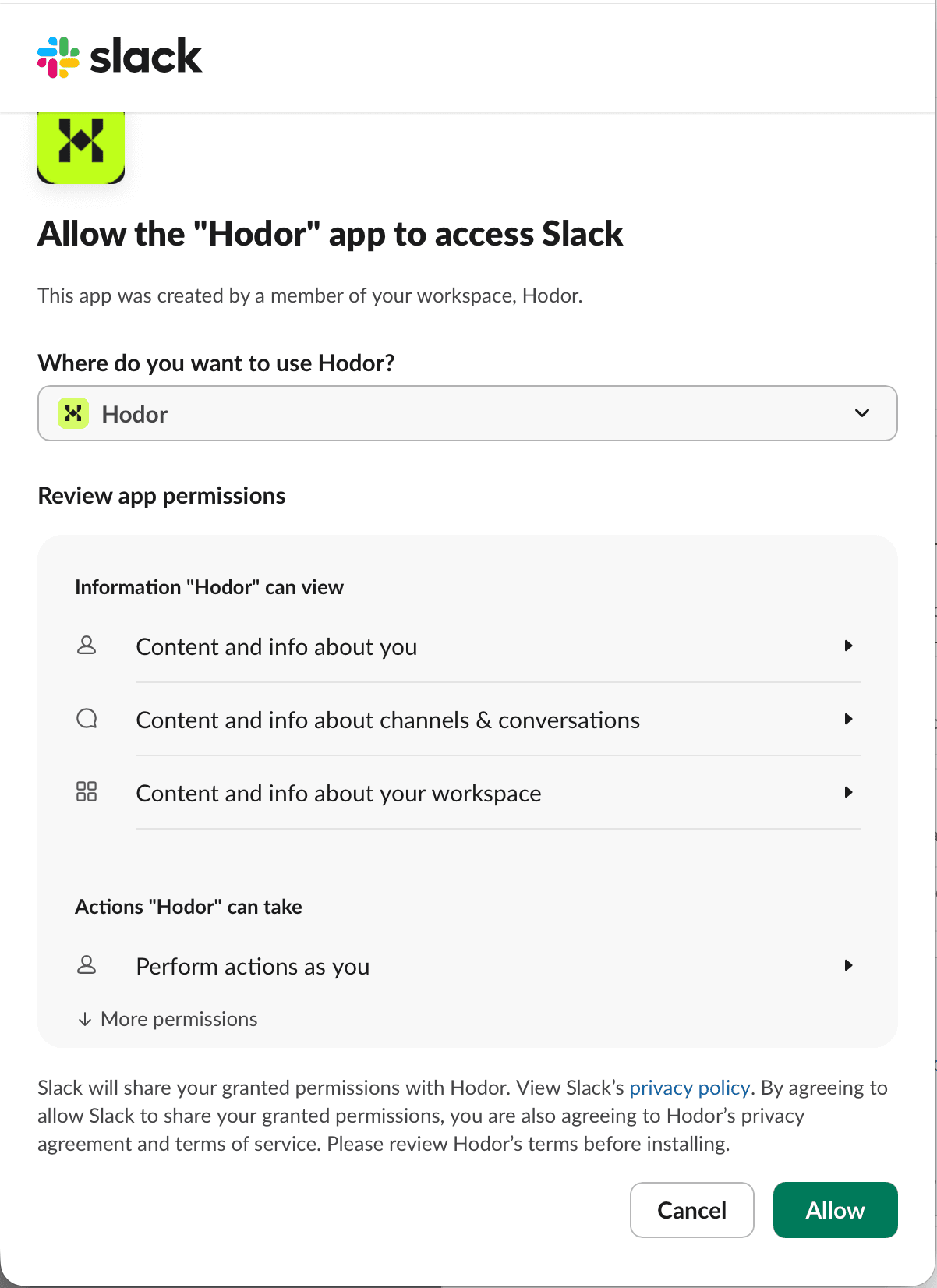
Once Slack is in the catalog, each member selects it and chooses Connect. Slack opens a consent screen showing the workspace you are connecting and the permissions listed below. Choose Allow. If your Slack workspace restricts app installs, your Slack admin gets an approval request first. Once they approve it, choose Connect again.
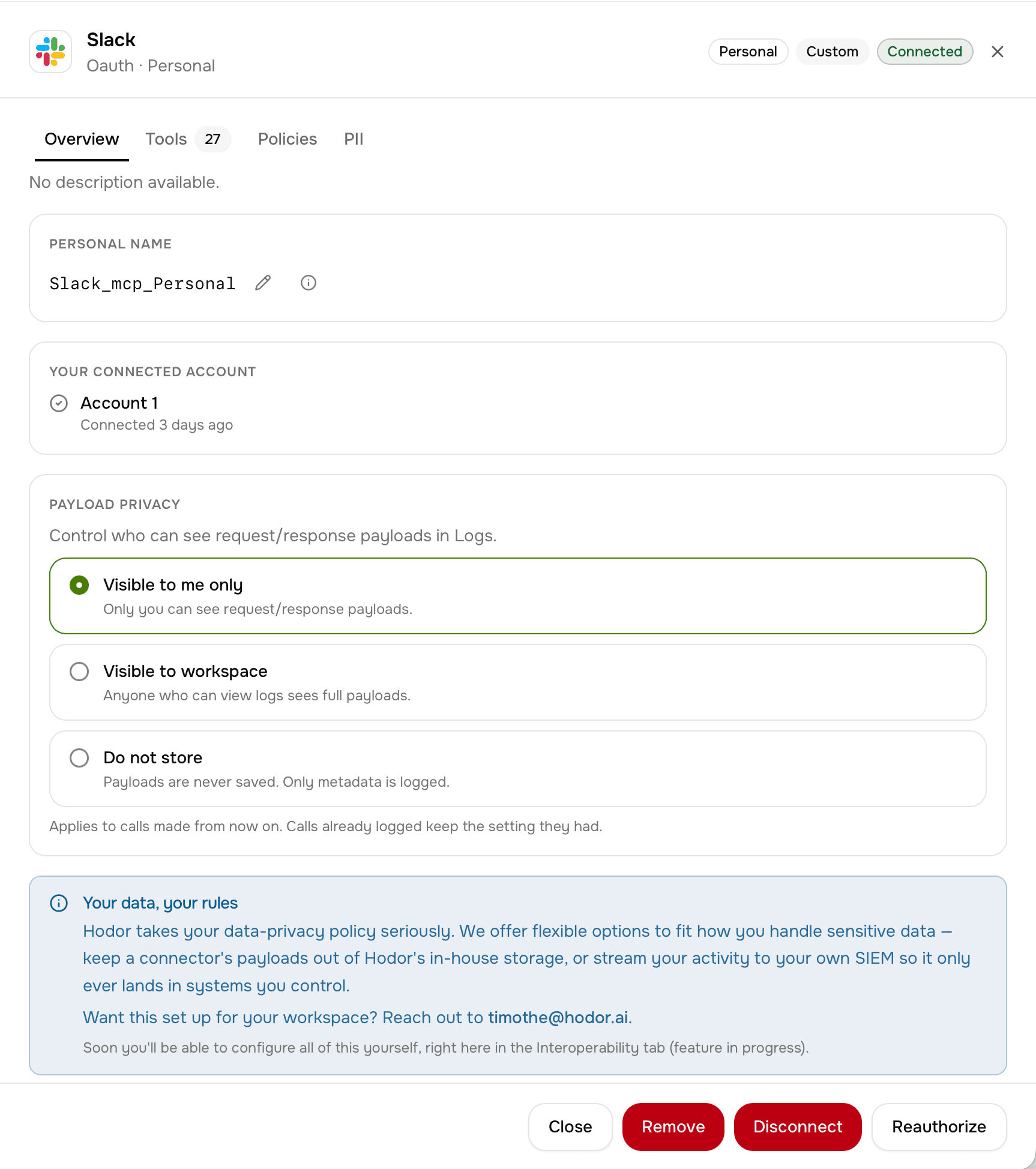
You return to Hodor, where the Slack connector now shows Connected. To use it, add the connector to an agent contract, then ask your agent to do something in Slack, such as searching a channel or sending a message.
Hodor asks for user-token scopes, because it acts as the person who connected. Each scope backs one or more of Slack's MCP tools. Hodor uses a scope only when your agent calls that tool, and only on what you can already access in Slack.
30 scopes. Scroll to see all.
search:read.publicSearch messages in public channels when the user's agent asks Slack to find a discussion.
Slack MCP tool: Search messages and channels
search:read.privateSame search, limited to private channels the user is already a member of.
Slack MCP tool: Search messages and channels
search:read.mpimSame search, across group direct messages the user is part of.
Slack MCP tool: Search messages and channels
search:read.imSame search, across the user's own direct messages.
Slack MCP tool: Search messages and channels
search:read.filesFind files shared in the user's workspace by name or content.
Slack MCP tool: Search files
search:read.usersLook up a teammate by name so a message or mention reaches the right person.
Slack MCP tool: Search users
channels:historyRead messages and threads in public channels when the agent asks for them.
Slack MCP tool: Read a channel or thread
groups:historyRead messages and threads in private channels the user belongs to.
Slack MCP tool: Read a channel or thread
mpim:historyRead messages and threads in group direct messages the user is part of.
Slack MCP tool: Read a channel or thread
im:historyRead the user's own direct-message conversations.
Slack MCP tool: Read a channel or thread
channels:readList the public channels the user is in, and who is in a public channel.
Slack MCP tool: List user channels, List channel members
groups:readList the private channels the user is in, and who is in them.
Slack MCP tool: List user channels, List channel members
mpim:readList the group direct messages the user is in, and who is in them.
Slack MCP tool: List user channels, List channel members
im:readList the user's direct-message conversations.
Slack MCP tool: List user channels
channels:writeCreate a public channel when the user's agent is asked to.
Slack MCP tool: Create a conversation
groups:writeCreate a private channel when the user's agent is asked to.
Slack MCP tool: Create a conversation
im:writeOpen a direct message with a teammate so a message can be sent.
Slack MCP tool: Create a conversation
mpim:writeOpen a group direct message with several teammates.
Slack MCP tool: Create a conversation
chat:writeSend or schedule a message as the user, only when the agent calls the tool.
Slack MCP tool: Send a message, Schedule a message
reactions:readRead the reactions on a message.
Slack MCP tool: Get reactions
reactions:writeAdd an emoji reaction as the user.
Slack MCP tool: Add a reaction
canvases:readRead the content of a canvas the user can open.
Slack MCP tool: Read a canvas
canvases:writeCreate or update a canvas as the user.
Slack MCP tool: Create or update a canvas
lists:readRead a Slack list and its records.
Slack MCP tool: Read a list
lists:writeCreate a list, and add or update its records.
Slack MCP tool: Create or update a list
files:readRead the content of a file shared in Slack when the agent asks for it.
Slack MCP tool: Read a file
files:writeUpload a file to a conversation as the user.
Slack MCP tool: Upload a file
emoji:readSearch the workspace's custom emoji so a reaction uses a name that exists.
Slack MCP tool: Search emoji
users:readRead a teammate's profile (name, title, time zone).
Slack MCP tool: Read a user profile
users:read.emailInclude a teammate's email address in the profile the agent reads.
Slack MCP tool: Read a user profile
Open Connectors, select Slack and choose Disconnect in the connector drawer. Access stops on the next call. A workspace admin can also remove the Slack connector from the workspace catalog.
A Slack admin can remove the Hodor app from the workspace in Slack's app management. Slack then revokes every token it issued to Hodor.
Email contact@hodor.ai. You don't need a Hodor account to reach us, and we reply within 2 business days.